After Ryan Irelan posted about using Keyboard Maestro to block apps, I decided I could adapt the tip for a less cold-turkey approach to computer-enforced self control.
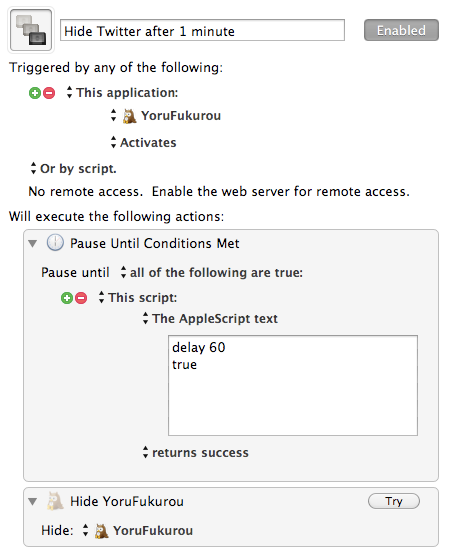
So I’ve been using Ryan’s tip with one minor change: it uses the world’s simplest AppleScript to introduce a time limit for how long distracting apps can remain open (or active). Just create a Keyboard Maestro macro like the following (or download this example):
As you can see, this macro waits one minute (60 seconds) before hiding my Twitter client. Works like a charm: hiding the app doesn’t force me to leave Twitter; but reactivating the app becomes a conscious act of will that forces me to answer That Question.
(I use a similar macro to quit my RSS reader after a more generous 10 minutes.)
Scientific American I think it was did a study in the early 70’s on the efficiency of locomotion. What they did was for all different species of things on the planet – birds and cats dogs and fish and man and goats and stuff – they measured how much energy does it take for a goat to get from here to there… and they ranked them and published the list, and the condor won, it took the least amount of energy to get from here to there, and man didn’t do so well, came out with a rather unimpressive showing about a third of the way down the list.
But fortunately, someone at Scientific American was insightful enough to test man with a bicycle, and man with a bicycle won—twice as good as the condor, all the way off the list. And what it showed was that man is a toolmaker, has the ability to make a tool to amplify the amount of inherent ability that he has.
And that’s exactly what we’re doing here. We’re not making bicycles to be ridden between Palo Alto and San Francisco… but in general we’re making tools that amplify the human ability.
Learning a new language is never a simple task, but the process itself shouldn’t be difficult. For my Master’s final project, I’m teaching myself Objective-C. (More on our decision to go native here.) For those facing a similar task, here are some tools I’m using using to facilitate this process.
Learning Materials
I researched several learning resources that had been recommended on Quora, including Big Nerd Ranch’s iPhone Programming and Craig Hockenberry’s iPhone App Development: The Missing Manual.
In the end, I decided to “take” the Stanford iPhone Application Development course, which is available in its entirety on iTunes U. (Note that iTunes U has both the 2009 and 2010 courses. I chose the 2010 version because a) it’s geared for a newer iOS SDK, and b) all the supporting materials are still (as of Spring 2011) available on Stanford’s course website.
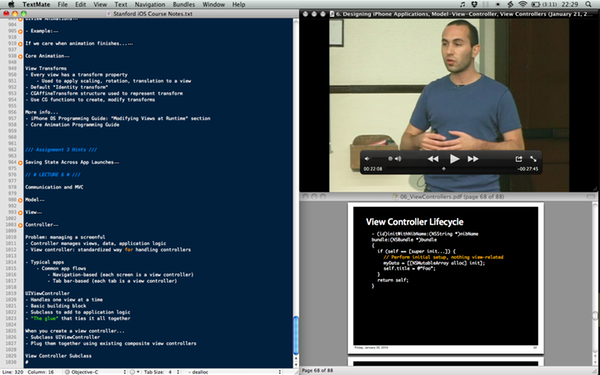
iTunes handles the lecture downloads, but I watch them with QuickTime Player for two reasons: it uses less screen real estate, and you can speed up playback by option-clicking the fast-forward button. A text editor is ideal for notes (particularly one that handles Obj-C syntax highlighting), and it’s always handy to keep the lecture slides open as well. Here’s my typical “class time” screen:
Helpful shortcuts:
Setting up the screen like this is a snap with Divvy. I set up shortcuts to move windows to each half or quadrant of the screen, so they can fly to any position with a keyboard shortcut. Priceless.
A series of quick-and-dirty AppleScripts—which can be quickly invoked with FastScripts—makes it easy to work the lecture files. Scripts I use (available on Github) include:
launch the current iTunes file in QuickTime Player (or vice-versa), retaining the current playback spot
jump to an arbitrary playback position in QuickTime Player (especially helpful if I’ve been watching a video on my iPhone)
jump backwards or forwards in QuickTime Player
Notekeeping
Right now I keep two types of notes: course notes and error notes.
Course notes—general notes from the lectures or books—go in a single text file that’s easily searchable. I type or copy most of the lecture slides into this document because it’s easier to have it all in one place.
Error notes, which detail all the build errors I get in Xcode, live in Notational Velocity (tagged with “ObjC” and “Error”). Each error note contains the following sections:
Error message
Context (anything that might help)
My code (specific code throwing the error, and which file)
Problem explanation (interpretation of what went wrong)
Solution (fixed code)
These error notes are a personal history of the mistakes I’ve made. My expectation is that this practice will have value both now and in the future, but as the good folks at Field Notes say, “I’m not writing it down to remember it later, I’m writing it down to remember it now.” The more I can internalize beginner’s mistakes, the less likely I’ll be to repeat them.
My only complaint w/r/t using Notational Velocity for this purpose is that it doesn’t have syntax highlighting. A relatively minor inconvenience, but I’m hopeful that a future NValt build might include this.
Helpful shortcut: I use a TextExpander shortcut to pre-fill each error note before I start adding data. It simply adds each section’s header—something that might not seem that important, but it saves a little time and helps me be consistent in this practice.
Troubleshooting
Stack Overflow is an indispensable Web site for programming questions/answers. I should probably get better at perusing Xcode documentation, but often it’s faster to search Stack Overflow. (I’ve noticed that most of my problems are answered in Stack Overflow questions with no upvotes, meaning that they’re beginner errors. I’ll know I’ve arrived when I graduate to more popular questions!)
Helpful shortcut: Searching Stack Overflow is nearly instantaneous using a LaunchBarsearch template set to search StackOverflow with the [Objective C] tag pre-filled. Once it’s set up, ⌘[space] → “so” → [query] gets it done pronto.
Rumor has it that there’s an extant Stata bundle for TextMate. The original package link is a dead, but Gabriel Rossman was kind enough to send me a copy of his installed bundle.
With thanks to the author, Timothy Beatty, here’s the original bundle:
For those wanting a little extra functionality, George MacKerron described a method to add tab-completion for Stata variables. I’ve added his code to this version of the Stata bundle. (N.B. If your Stata application is not named “Stata”, you’ll need to make one small change. Open TextMate’s Bundle Editor; then, in the Stata bundle’s Complete Variable command, change the “appname” variable in line 6 to reflect your app’s true name, e.g. “StataMP”.)
Update: I’ve learned that two forward slashes can also be used in Stata for comments, including inline comments. To properly highlight this in Textmate, open the Bundle Editor > Stata > Stata. At the end of this file is the ‘comment.line.star.stata’. Change the match line to this:
match = '((^|\s)*|//).*$';
(N.B. As Sean points out below, make sure the single-quotes are straight, not curly, when you paste this line. Otherwise TextMate will throw an error.)
I’ve written before about personal information management: why it’s important for everyone—not a subset of ‘power users’—and how to evaluate information management systems.
In short, we simply deal with too much information every day to deal with it all. What’s more, we should only have to dig for a given piece of information once; a good information management system should facilitate easy retrieval the second time around.
“Everything buckets”, as one category of information managers are called, are seemingly everywhere. What’s astonishing is that even in 2010, almost none of these performs more than the most rudimentary information retrieval functions. In general, even with these “smart tools”, the onus remains on the user to a) do a thorough job classifying and organizing his or her information, and b) to know exactly what terms to search for when seeking said information. Except, that is, for DEVONthink.
On its face, DEVONthink is a versatile database that can store and retrieve just about any type of data available: PDFs, web clippings, emails, MS Office documents, bookmarks, multimedia, RSS feeds, etc. At this level, it’s similar to (though, to my knowledge, more robust than) a number of related products. The real value comes in the content analysis functions that are applied to everything you throw at it.
Demystifying DEVONthink’s AI
It’s the “artificial intelligence” features of DEVONthink that really set it apart from the crowd of personal information managers. (I put “artificial intelligence” in quotes because DEVONthink’s brain owes more intellectual debt to the work of information retrieval than machine learning.)
While other information managers hold to an archaic notion of binary relevance (either a thing matches your query terms or it doesn’t), DEVONthink incorporates much more nuance into its reckoning.
In fact, it can treat entire documents as search queries, a feature that seems useless until it almost magically reveals documents related to the one you’re looking at, or offers to automatically file it into the right folder. (This function—”automatic class management” in information retrieval-speak—is invaluable in the paperless office: should you choose, DEVONthink files all your bills away with a single keystroke.)
In short, DEVONthink takes an entire class of advanced tools otherwise restricted to researchers and search engines and unleashes it on your personal data set.
No wonder Steven Berlin Johnson raved about DEVONthink in 1995. No wonder he still uses it today.
Information Capture
As I mentioned, DEVONthink can handle any document type you can give it. If it’s a file, DEVONthink can store it. If the file is searchable with Spotlight, DEVONthink can perform smart analysis on it. Even non-traditional document types (RSS feed items and mail messages, for example) are fair game, and it’s scriptable for those fringe use cases the folks at DEVONtechnologies haven’t thought of (my NetNewsWire-to-DEVONthink script is one).
Information Retrieval
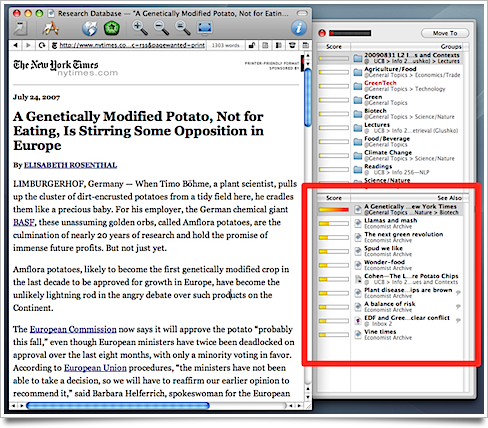
Perhaps the most unusual feature of DEVONthink, the “See Also” bar displays a rank-weighted list of documents related to the current one. By surfacing documents you may not have thought as relevant, this can facilitate serendipity in research.
As an anecdotal example, for this document on GM potatoes, DEVONthink returns a number of related articles I’ve saved—including one on Peruvian potato farmer, another document on how genetic modification is transforming agriculture in Europe, and one on a certain incident in which Pringles are ruled as potatoes.
Another example: the previously pictured article on a fatherless baby shark is suggested as a candidate for my folder on Slaughter-house Five notes. No link was immediately apparent, so I glanced through those notes and found the following quote about the seven Earthling sexes:
There were five sexes on Tralfamadore, each of them performing a step necessary in the creation of a new individual. They looked identical to Billy—because their sex differences were all in the fourth dimension…
While this serendipitous insight may be of limited academic value, I can say with reasonable assurance that I wouldn’t have thought of the Tralfamadorians while investigating virgin births in the local shark population. But I’d be hard pressed to say it’s not relevant, so I’ll chalk it up as useful.
Search
Sometimes you need a precise match for your search query. DEVONthink can also accommodate those needs through advanced search operations:
Strict vs fuzzy search (fuzzy search returns near-misspellings, word variants, etc)
Regex-style wildcards
Boolean operators (e.g., a AND b; a XOR b; NOT b)
a NEAR b
a BEFORE b
etc
Conclusion
In 2010, I am amazed at two things: first, how useful DEVONthink’s smart features can be in real-life scenarios; and second, that no one has begun approaching DEVONthink’s usefulness even though it’s been on the market since 2002.
If you haven’t used DEVONthink before, take some time to try the free demo. In the worst case, you haven’t lost a thing (unlike Evernote, DEVONthink never holds your data hostage in proprietary databases). But in the (more likely) best case, you’ve gained a really, really smart research assistant.
Congratulations, DEVONthink. You deserve these accolades.
Disclosure: in celebration of its birthday, DEVONthink is offering some incentives to users who contribute to the discourse around its product offering. This served as a motivation for the timing of this post, not the content. I’ve actually been intending to write about DEVONthink since before I published my original thoughts on personal information management (in 2008), and more recently since I entered into a Master’s program in information science.
11 July 2011: as described here, I’ve switched to a Start-based workflow and updated my scripts to reflect this change. By default, these scripts now set the start dates of selected items, not due dates—though you can still switch to “Due mode”. This post has been updated to reflect these changes.
I’ve added two more scripts to my OmniFocus repertoire: Today and Tomorrow.
As one might expect, Today sets the “Action Date” of selected item(s) to the current date, and Tomorrow sets the action date to the next date. (By default, the Action date is the Start date, but you can switch to use the Due date if you prefer.)
Why might you need this? A few days of ignoring OmniFocus is enough to make any date-sorted view overwhelming. My Defer script is one method to deal with these items: defer them by a day, a week, etc. But sometimes you just need to set these items to today. Or tomorrow.
As with Defer, these scripts work with any number of selected tasks.
If you use the default “Start” mode:
The Start date of each selected item is set to the current day
If an item has a previously assigned Start date, its original time is maintained. Otherwise, the start time is set to 6am (configurable in the script)
If you use “Due” mode:
The Due date of each selected item is set to the current day
If an item has a previously assigned Due date, its original due time is maintained. Otherwise, the due time is set to 5pm (configurable in the script)
If an item has a Start date, it is moved forward by the same number of days as the due date has to move (in order to respect parameters of repeating actions)
Putting it all together
I’ve set my keyboard shortcuts for Defer, Snooze, Today, Tomorrow, and This Weekend to ctrl-d, ctrl-z, ctrl-t, ctrl-y, and ctrl-w, respectively (using FastScripts), so shuffling tasks couldn’t be easier. Use cases:
Catching up after holiday: Select all overdue tasks, hit ctrl-t to bring them current. Then snooze or defer the ones you won’t get to today.
Planning today’s tasks: Select your tasks and ctrl-t them into the day’s queue. Planning tomorrow? Use ctrl-y instead.
Thanks to Seth Landsman for his role in inspiring my Today script. His version is very similar but doesn’t quite match the defer logic I need.
Usage note: some items inherit due dates from their parent task or project, but don’t actually have due dates themselves. This script ignores those items.
Here’s an AppleScript that “snoozes” selected OmniFocus items by setting their start date to a future* value. These items will then be unavailable (and out of sight in views showing “available” items) until the snoozed start date.
Usage:
Run the script with one or more items selected in OmniFocus
Choose how long you would like to snooze the items (in # of days)
The script will then set the start date of selected items to the current date + the number of days selected in step 2. For example, snoozing with the default value of 1 day will set the tasks to begin at 12:00 AM tomorrow.
Finally, if you have Growl installed, the script will display a Growl confirmation.
I highly recommend initiating the script from a third-party launcher such as FastScripts or Quicksilver. This will prevent delays within the OmniFocus application due to Growl bugs.)
* This doesn’t have to be a future value. Choosing 0 as the snooze value will set the start date to midnight today; choosing -1 will set the start date to midnight yesterday.
The updated Defer script for OmniFocus is ready. Changes include:
Bug fixes to make the script more reliable, particularly when deferring multiple items.
For most of these I’m indebted to Curt Clifton, who made the most critical bug fixes on the OmniFocus forum. (If you use OmniFocus, his scripts and tools are invaluable; be sure visit his site.)
The default action now defers both start and due dates.
Notifications code has been rewritten to make the script friendly for machines without Growl installed.
While testing, I discovered that GrowlHelperApp crashes on nearly 10% of notification calls. To work around this, the script now checks to see if GrowlHelperApp is running; if not, the script launches it. If Growl is not installed or can’t launch, the script displays a generic notification of the defer results.
If you experience delays with the script, it’s almost certainly an issue with Growl, not OmniFocus. This is much less of an issue if you launch the script via a third-party utility like FastScripts, because any Growl-related delays will be absorbed by the script launcher, not OmniFocus. If you primarily invoke the Defer script from your OmniFocus toolbar, you can always disable alerts to speed things up. To do this, simply open the script in Script Editor and change property showAlert to false.
I am, of course, referring to Evernote, a tool that’s designed to remember everything you throw at it – then provide access to your information from virtually anywhere.
If you’re unfamiliar with the tool, this video will give you a quick picture of what it does:
Despite the obvious awesomeness of its sync/access capabilities, earlier iterations of Evernote failed my acquired-information management criteria on numerous counts:
It couldn’t accept basic documents like PDFs (flexibility fail)
It wasn’t scriptable (extensibility fail)
You couldn’t import/export data en mass (openness fail)
But the Evernote team have been hard at work, and with the recent addition of scriptability and an API, it’s worth a serious second look.
Accessibility: 9/10
Accessibility is undoubtedly where Evernote shines: you can access your data on the web client, your Mac or PC, or your iPhone or Windows Mobile device – and it all stays synchronized. Ergo, you still have your data when the network goes down. (The mobile Evernote clients act more as search/input portals into your Evernote data, though the latest iPhone version now stores your “favorites” locally so you can access critical notes offline. Also, if you prefer to keep some data private, you can selectively opt out of synchronization.)
Besides being Evernote’s killer feature, accessibility is also the cornerstone of the product’s business model: Evernote itself is free, but if you need more than 40MB/month you’ll need to upgrade to the premium version ($5/month or $45/year). The most exciting Evernote use cases will probably be mashups that use its API, which means increased bandwidth needs – and, therefore, subscriptions. (N.B.: Evernote’s API documentation describes the bandwidth elements as the “accounting structure”.)
Flexiblity: 4/10
Evernote accepts text/RTF files, images, web clippings, PDFs, and audio notes. To get files in, you can drag-and drop files onto the desktop client, email them to a special Evernote email address, or use the bookmarklet to clip content directly from any web browser. Handily, if you have part of a web page selected, the bookmarklet just saves the selection. Read: Evernote is most in its element when used for web clippings.
In addition, images can be snapped from your webcam or iPhone camera. More on this later.
Unfortunately, Evernote can’t handle many common document types, including Word documents (though RTF documents work passably). Most other filetypes (mind maps, outliner documents, etc) are out of the picture as well.
In the Mac client, the built-in content editor is little more than a glorified text editor. Text formatting is limited to font/size, bold/italic/underline, and alignment, though you can also attach images. (Not to mention the insulting font selection, which includes Arial but not Helvetica – shame!) The Windows client also provides some drawing tools (useful with a tablet PC), a broader font selection, and outlining functions. Update 11/10/08: Version 1.1.6 for Mac introduces orderd/unordered lists and tables.
Scalability: 6/10 (est.)
I haven’t thrown a tremendous amount of data at Evernote yet, so it’s unclear how performance is affected by a large data set. (I was hoping to put it to the test via the Delicious bookmark import, but Evernote just imported the bookmarks as links, rather than scraping the bookmarks’ targets.)
From a user interface perspective, scalability may be a problem. Items are accessed by browsing (by tags and metadata) as well as search. Aside from the ability to use multiple “notebooks”, there is no standard hierarchical organization. Users with a large number of tags or documents might become frustrated by this.
Searchability: 8/10
Basic search functions are solid, though generally unremarkable (no regular expressions, no advanced operators). You can combine search terms with tag filters.
In addition, Evernote has a couple search tricks up its sleeve:
Images pass through Evernote’s OCR engine when synchronized, turning image text into searchable data. This even works, to a large extent, on handwriting – slick!
Evernote metadata includes standard text tags as well as optional location data, so you should be able to search by location as well as content
Extensibility 7/10
The Mac client now includes a basic AppleScript dictionary, which allows for integration with other apps. No content-level scripting, but the most important feature – note creation – is available.
In addition, the Evernote API provides full access to Evernote data. I’m not aware of any Evernote-based applications yet, though Pelotonics is planning some level of integration. If useful integration emerges, this is will be a big win for users.
Openness 4/10
Disappointingly, despite claiming export options as a feature, Evernote maintains a tight grip on your data. Need to send a file to your colleague? Forget drag-and-drop: you’ll need to go through Evernote’s export or email functions.
On the Mac side, the only export option produces a proprietary Evernote-formatted XML file with document contents embedded. The Windows client can also export in HTML, web archive, and text formats.
When emailing files, Evernote wraps most notes in an ad-encrusted PDF document before sending. (Yes, it’s as bad as it sounds. Look for the “Plain text note” here. That PDF is what you get when you try to email a text file.) Mercifully, you can email PDFs in their original form – though whether this is by design or oversight is unclear. What is clear is that Evernote doesn’t make it easy for you to use your data as you wish.*
A third option is to share your documents in a public notebook (like this one). This of course not the same as export, but it does provide a refreshing level of social openness uncommon in tools of this nature.
Final thoughts
Evernote deftly handles web clippings and snapshots, and ubiquitous access makes it a viable tool for web research and data management.
Perhaps paradoxically, Evernote’s impressive accessibility also limits how I use it. Synchronizing data through Evernote’s server means I won’t use it for sensitive data. So although it’s hard to imagine a situation in which I won’t have access to my iPhone, Mac, or a web browser, it’s also hard to imagine a situation in which said access is truly critical. So I typically use Evernote for less important (but nonetheless useful) tasks:
Clipping captioned images and business cards for OCR
Jotting beer-tasting notes
Snapping photos of the same
Misc. data capture when I’m away from my computer
Bottom line: despite its limitations, Evernote is a great tool. At the free price point, you’re unlikely to find a more robust tool… so give the elephant a whirl.
*Comparisons could be drawn to DRM-laden music purchased from iTunes: it’s quite likely that you’ll never want to use it outside the iTunes/iPod ecosystem. But if (or when) that day comes, you won’t want to deal with their restrictions on your data. Same principle.
Update: 1Password bookmarklets are back, so please disregard this post.
The 1Password iPhone application is now available for download from iTunes (link here). The benefits of the iPhone app are clear: true data synchronization; intuitive interface with multiple levels of security; robust enough to handle thousands of passwords.
But there’s a catch: the updated 1Password desktop app will no longer export to the login bookmarklet. iPhone users: the 1Password app doesn’t integrate with Mobile Safari, so using the iPhone app will box you into its integrated browser. Firefox users: you’ll need to use the less convenient web page export.
Fortunately, Agile Web Solutions makes old versions available for download, so you can always revert to version 2.7.2, the latest version to support bookmarklets. At present, you can switch back and forth between versions (though I can’t say this won’t cause issues) to get the best of both worlds.